
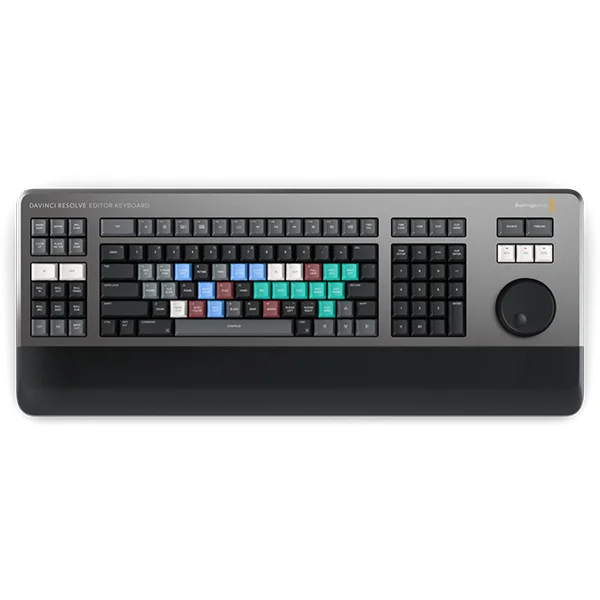
Description
The DaVinci Resolve Editor Keyboard is designed for professional editors who need to work quickly and finish their projects as fast as possible. It’s a true solution for editing faster than with a mouse. In fact, it allows you to use both hands simultaneously and features an integrated scroll wheel. To install it, simply plug it into any USB-C computer and you’re good to go! Unlike standard USB keyboards, the DaVinci Resolve Editor Keyboard was specifically designed for DaVinci Resolve 16, with the goal of significantly improving your workflow speed.
Premium metal design
The keyboard’s all-metal design provides unparalleled durability, essential for professional editors who spend long hours using this tool. Unlike keyboards with flat keys, the DaVinci Resolve Editor Keyboard features multi-level keycaps for easier navigation. The key switches are similar to those found in esports keyboards and are guaranteed for over a million keystrokes. The integrated scroll wheel is made of durable metal, allowing for precise adjustments. The keyboard also features a comfortable wrist rest to reduce fatigue. Replacement keycaps, wrist rest, and switches are also available.
#image_253809673 {
width: 100%;
}
Unmatched assembly speed!
The DaVinci Resolve Editor Keyboard offers unparalleled workflow speed because you can use both hands. You can control your position within a clip with your right hand, while setting in and out points and applying edits with your leftsomething impossible with a mouse. This allows you to move within a clip, mark in and out points, make an edit, then move back, and so on. It’s an incredibly fast workflow. You can even select points and use the scroll wheel to trim live footage. The large scroll wheel allows for very precise cuts. The keyboard also includes transition selection buttons for instantly choosing between Cut, Dissolve, and Smooth Cut.
Integrated dial
The integrated jog wheel is made of machined metal and a rubberized coating, giving it an incredible feel and durability for controlling your clips or timeline in DaVinci Resolve. It features an electronic clutch with a stop in both shuttle and position modes, all controlled by software. With multiple bearings, the wheel is exceptionally smooth and can be operated in jog mode for natural scrolling through the timeline. Jog mode allows you to move freely to precisely position the playpoint. Shuttle mode uses the clutch to allow you to move forward and backward in the timeline. Scroll mode lets you scroll up or down for quick navigation through a timeline with many edits.
Source mode. Tap quickly to scroll through clips
Traditional non-linear editing software uses thousands of clips to organize media, requiring drag-and-drop. However, this is too time-consuming for editing television productions, news broadcasts, promotional videos, and more. Traditional tape editing allowed all media to be on a single tape, providing quick access by fast-forwarding or rewinding. The new Source button instantly creates a « source tape » of all clips in your bin. Now, you simply scroll up or down through all your media, without having to navigate through thousands of clips. The currently playing clip is also highlighted in the bin in real time. Furthermore, switching between the source tape and the timeline is instantaneous.
Instant sorting of bins and source tape
The source tape uses the bin sort order to give you control over how takes are organized. This gives you the flexibility to search for takes by timecode, camera, duration, and even clip name. When one of the bin sort buttons is selected, the source tape will regenerate in that bin’s sort order. Simply scroll up or down the source tape to find the take you need. Sort by timecode to see all media in the bin sorted by timecode, which is perfect for content shot in chronological order, such as live events. You can sort by camera, which is ideal for multi-camera shoots because you can start by working on wide shots and then review cutaways from other cameras. You can even sort by duration and clip name!
#image_1870646761 {
width: 100%;
}
Intelligent keyboard mounting modes
The editing features are located just above the Enter and Exit keys, making it easy to apply your desired edit. Because editing on a keyboard differs from using a software interface, the editing functions have been optimized for keyboard speed. Most edits can be performed directly on the source clip without having to place in points on the timeline. This is much faster and eliminates the time wasted switching between the source and the timeline. Edit points can automatically detect the nearest edit in the timeline or even adapt to the timecode. The Smart Insert button is a good example, as it detects the nearest edit and inserts the edit at that point.
Smart Insert
The Smart Insert button is similar to traditional insert functions, but it works more intelligently because you don’t need to switch to the timeline and place the in point. You simply press the Smart Insert button, and it will locate the nearest edit point in the timeline and insert the clip there.
Append To End
The Append to End button is ideal for quickly editing your footage. Simply select the in and out points, and it will add the clip to the end of the edit, extending the timeline. This feature is fantastic for adding takes to an edit from content that was filmed in chronological order.
Ripple Overwrite
Ripple overwrite is a popular feature that allows you to overwrite takes and shift the duration extremely quickly. When this feature is enabled, it will replace the clip in the timeline with the selected clip. And if the clip is a different length, it will adjust the space to accommodate the new clip and shift the duration in the timeline.
Up
The Up function is perfect for creating two shooting angles from a single camera. Simply film a wide or medium shot of your subject, then apply the Up function to create a slightly zoomed-in version of the same shot and place it at the top of the timeline. You can also apply it to a clip within the timeline.
Place On Top
The Place On Top function is similar to traditional editing functions. This editing mode will place the clip on top of the background already present in the timeline. If the timeline doesn’t have a background layer, it will add a new track to the timeline and place the clip on top of it.
Source Overwrite
The Source Overwrite function is a faster alternative to multicam. It automatically matches the source timecode to the clip’s source timecode in the timeline and places the clip on top. If you’re shooting with multiple cameras and synchronizing the timecode, you can add additional camera angles to a wide-angle base layer.
Numeric keypad for direct timecode entry
When entering edit points and durations digitally, you’ll find a numeric keypad specifically designed for timecode entry. The F/TC button toggles between timecode and frame selection. Simply press this button to switch to frame selection. When entering longer timecode values, the double zero button prevents you from repeatedly pressing the zero key. The plus and minus buttons allow you to shift time values from the current values. The Duration button lets you digitally enter the duration of a clip. Digitally entering duration is one of the most frequently used functions! For example, if you need to set the duration of a clip to 100 frames, simply press DUR, F/TC, and 100!


